How-to guide
Check your AI usage
Halo uses the AI provider you connect, so you pay that provider for what it uses. AI Usage shows exactly where those tokens go: by day, by model, by kind of token and by run, with an estimate of what it cost.
Open AI Usage
Go to Model Usage
Open Settings›Model Usage. The screen is called AI Usage.
Pick a range
Use Month, Year or All at the top. Everything on the screen updates for that range.
Scroll through the cards
Each card answers a different question, explained below.
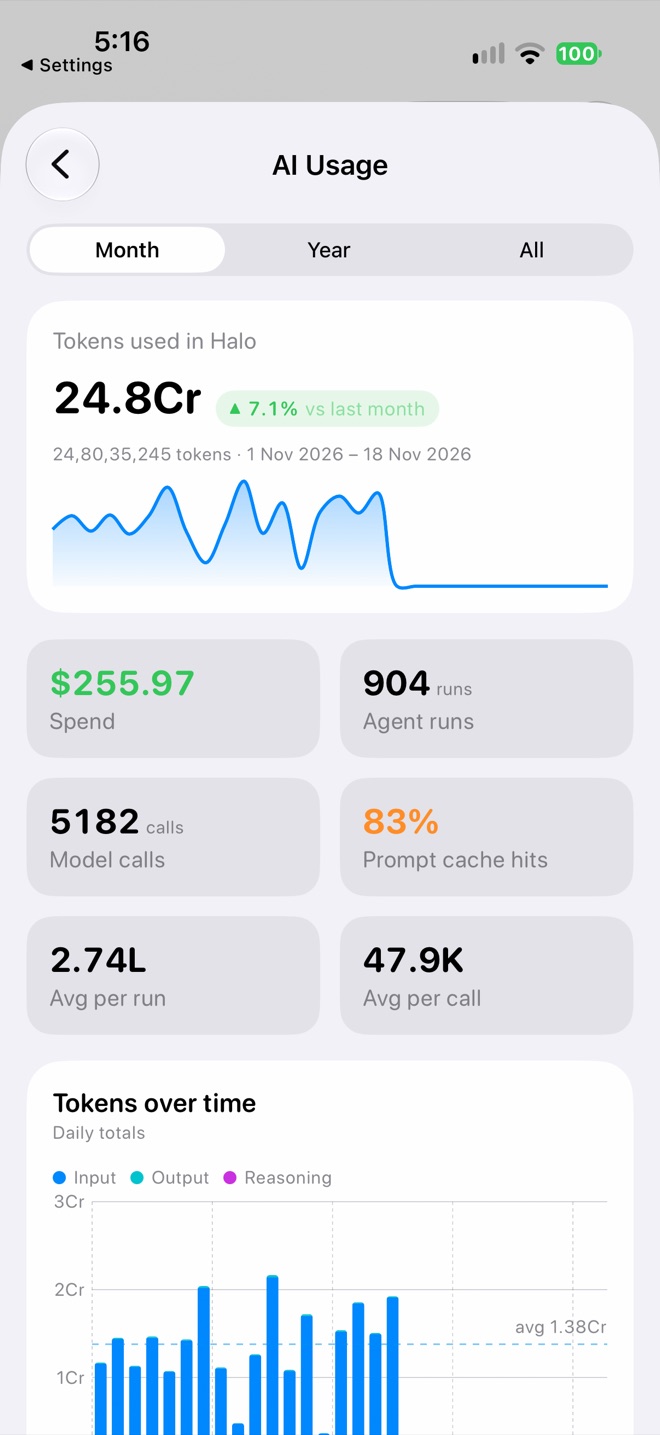
Totals for the month
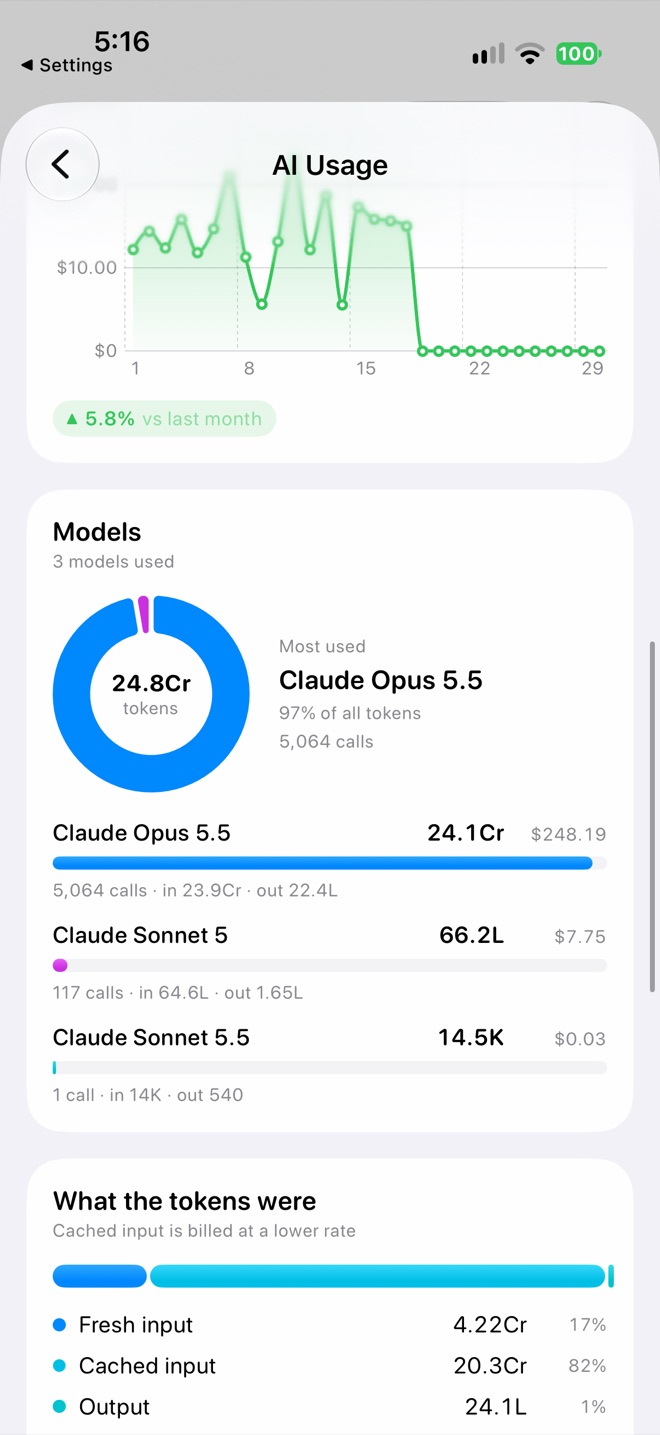
Spend and models
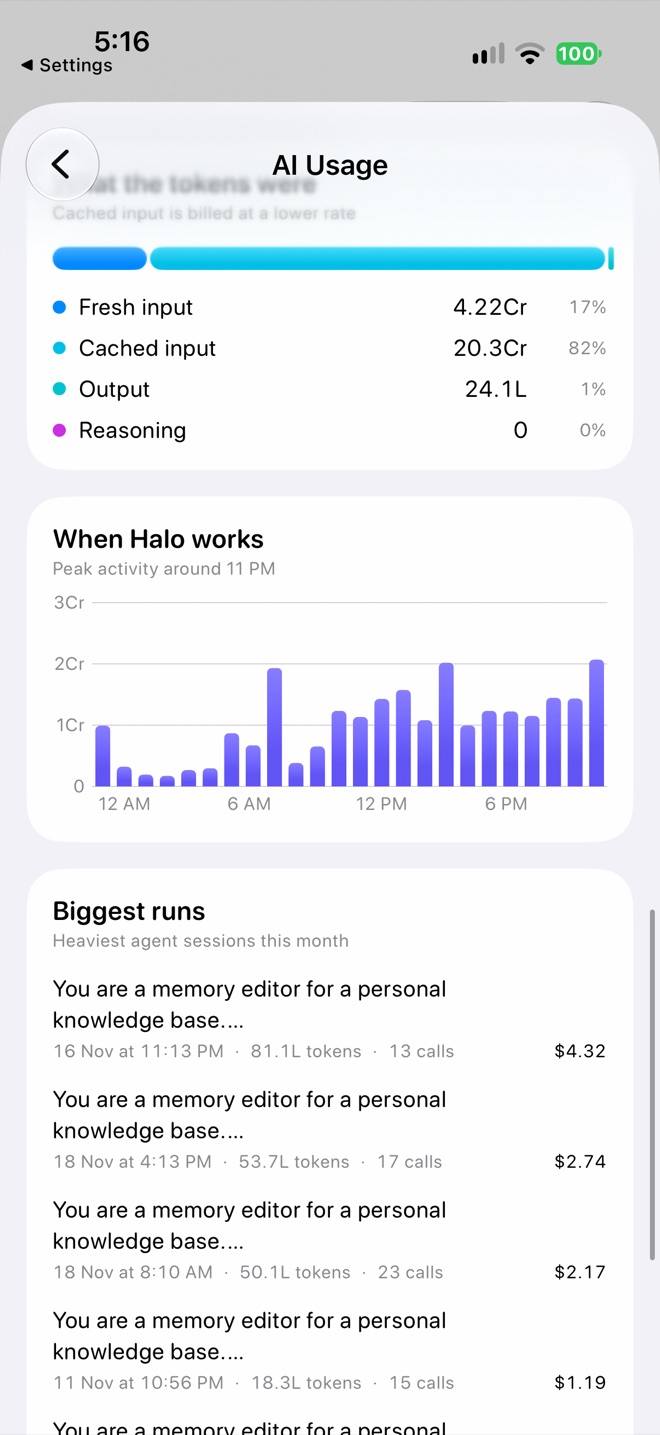
Token types, hours and biggest runs
What each card means
| Card | What it tells you |
|---|---|
| Tokens used in Halo | All tokens in the range, with how they compare to the previous period and a chart of each day. |
| Spend | An estimate, worked out from the prices of your configured models. Your provider’s bill is the final word. |
| Agent runs | How many times an agent ran: a chat reply, a task, a memory update, an insight. |
| Model calls | How many requests went to a model. One run usually makes several calls as it uses tools. |
| Prompt cache hits | The share of input the provider had already cached. Cached input is billed at a lower rate, so higher is cheaper. |
| Avg per call / per run | How big a typical request and a typical run are. |
| Tokens over time | Input, output and reasoning tokens per day, with the busiest day. |
| Spend over time | Estimated spend per day. |
| Models | Which models used the most tokens and what each cost, with calls, input and output per model. |
| What the tokens were | Fresh input, cached input, output and reasoning (thinking) tokens. |
| When Halo works | Tokens by hour of day, so you can see when background work runs. |
| Biggest runs | The heaviest agent sessions in the range. Find them in Agent Logs to see why. |
Usage for one conversation
In a chat, tap the info button at the top to see Token Usage for that conversation: spend, assistant turns, input, output, prompt cache hits, tokens per turn and the models it used. In the chat list, touch and hold a conversation and choose Token Usage.
Long chats get more expensive
Each turn sends the conversation so far, so input grows as a chat gets longer. You can see this in the Tokens per turn chart. Start a new chat when you change topic.
Bring usage down
Pick the right model for each job
- Use a cheaper, faster Secondary model; Halo uses it for summaries and quick lookups.
- Set a lighter model for Memory (Settings›Memories›LLM Model) and for voice note summaries (Settings›Notes›LLM Model).
- Give simple tasks their own model under What it can use in the task editor.
- Lower the Reasoning level in Settings›AI Model. Thinking tokens add up.
Do less in the background
- In Settings›Proactive AI, lower the Hourly limit, raise Wait after event, or turn off Auto Research.
- Run frequent tasks less often. A task every 15 minutes is 96 runs a day.
- Remove tools, MCP servers and skills a task doesn’t need, so each call is smaller.
Use the cache
Providers charge less for cached input. Keeping a conversation going for follow-ups, rather than starting over each time, keeps cache hits high.
Privacy
Usage is worked out on your iPhone from your agent logs. Nothing is sent to Halo to calculate it.