How-to guide
Ask Halo by voice from the Action Button
Press the Action Button, say what you need, and Halo answers out loud with a card on screen. It works from the Lock Screen and never opens the app.
It’s the same agent you use in the app, with the same model, tools, connections and memory. So you can ask about your calendar, add a reminder, check the weather, or have Halo run one of your tasks.
Open Settings › Action Button
In the iPhone Settings app, open Action Button and swipe to Shortcut.
Pick “Ask Halo by Voice”
Tap the shortcut name, search for Halo, and choose Ask Halo by Voice. The Action Button screen now shows it under Shortcut.
Press and talk
Press the Action Button. A Live Activity says “Say what you’d like Halo to do”, then shows Listening… while you speak. Halo sends your request about a second after you stop talking. You can also tap Send to send straight away, or Cancel.
Listen to the answer
The Live Activity moves to Thinking… and then Speaking…. Halo reads the answer aloud and shows it as a card. Tap Stop to stop reading.
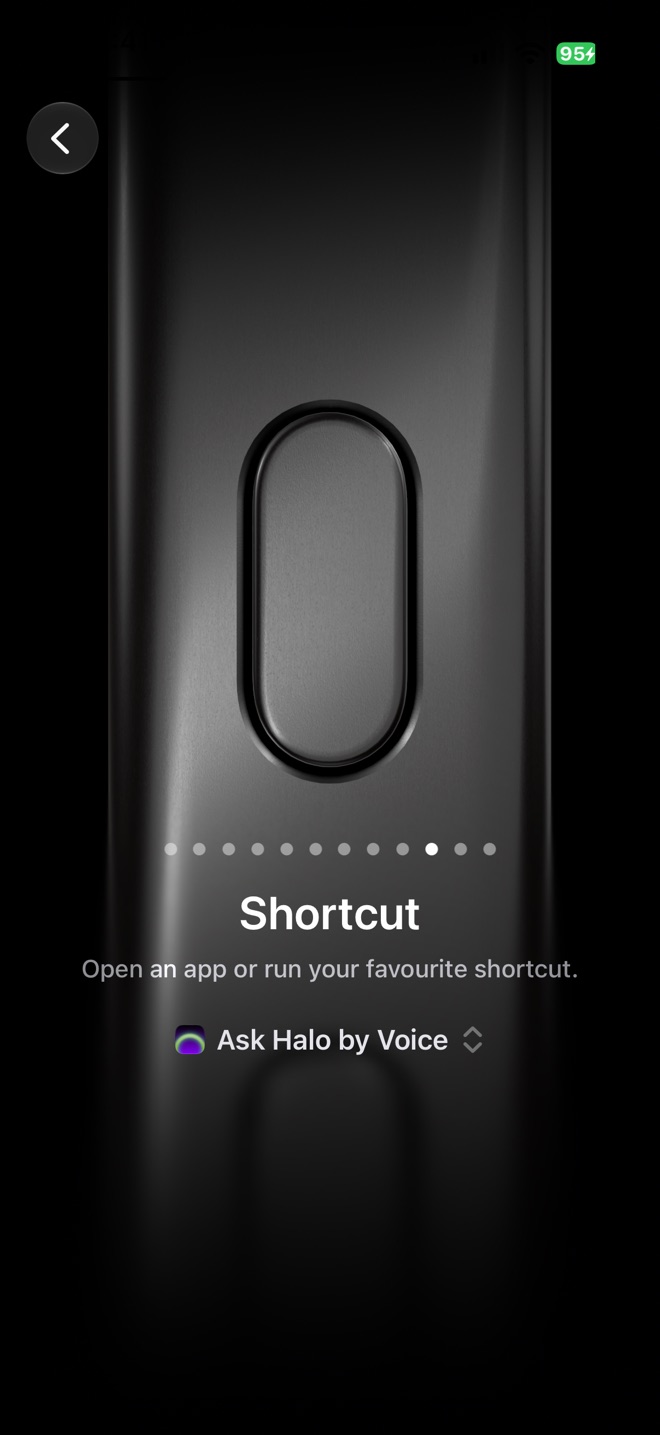
Action Button set to Ask Halo by Voice
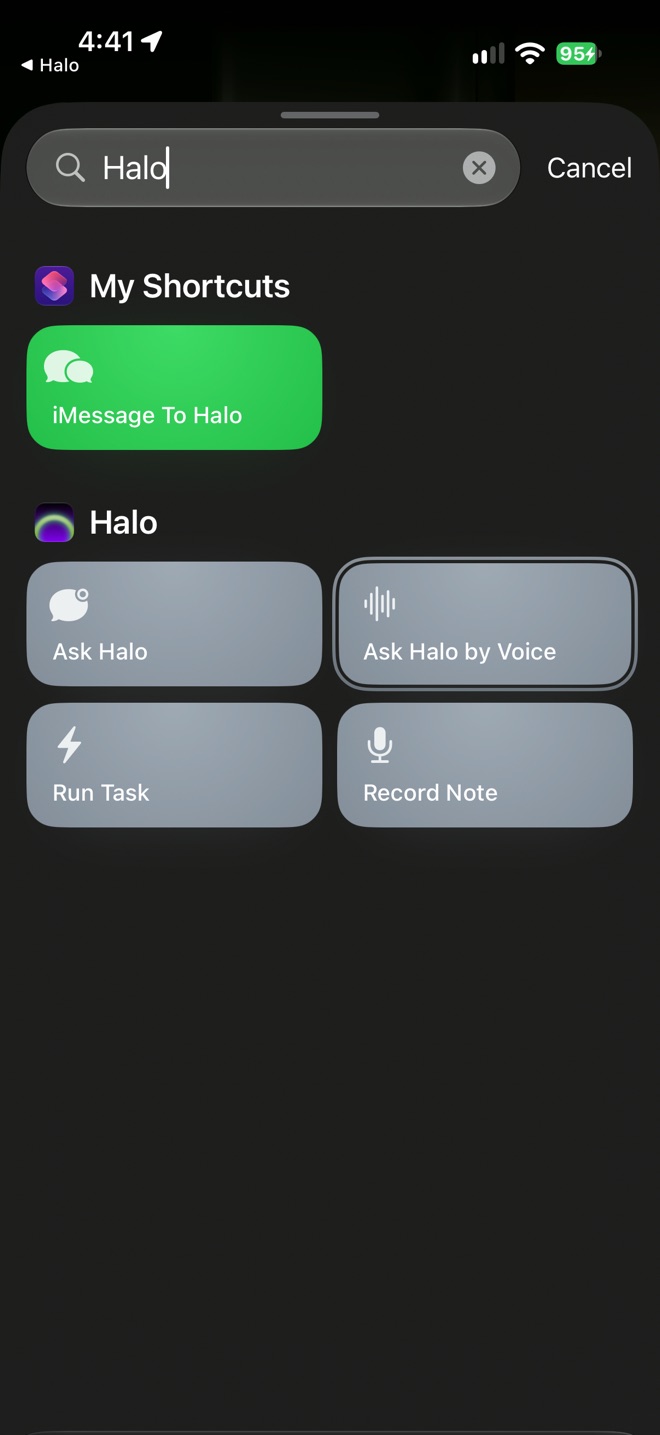
Halo’s actions in the picker
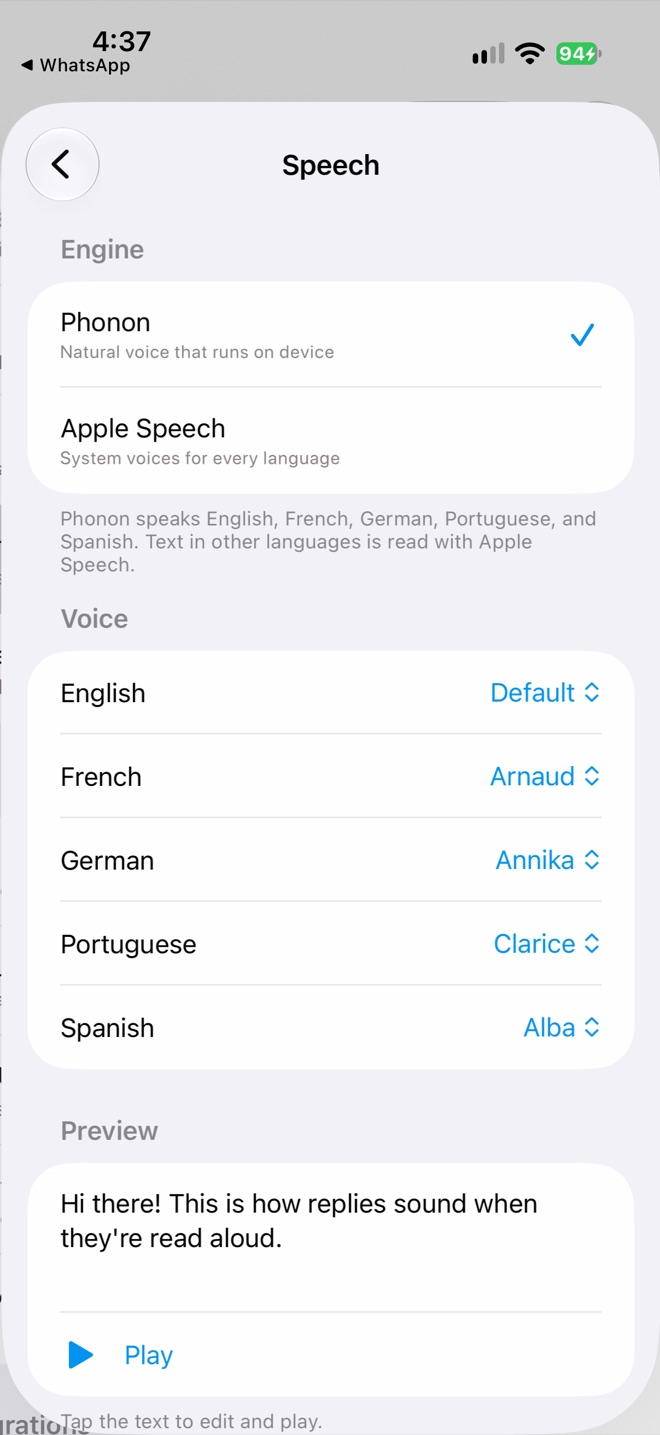
Settings › Speech
Follow-up questions
Press the button again within 10 minutes and Halo continues the same conversation, so “and what about tomorrow?” works. If Halo needs something from you, like which calendar to use, it asks right in the card and reads the question aloud.
Choose the voice
Answers are read by Phonon, a natural voice that runs on your iPhone. It speaks English, French, German, Spanish and Portuguese, and you can choose a voice for each language in Settings›Speech. Tap the preview text to edit it and play a sample. For other languages, Halo uses Apple’s system voices. You can switch the engine to Apple Speech if you prefer.
Typing instead
Prefer typing? Pick Ask Halo instead. It asks “What would you like Halo to do?” and shows the answer as a card. You can also say “Ask Halo by voice” or “Talk to Halo” to Siri.
Privacy
Your speech is turned into text on your iPhone and the reply is spoken on your iPhone. Only the text of your request goes to the AI provider you chose, straight from your phone.
Troubleshooting
- “I didn’t catch…” means Halo heard silence. Press again and start talking after the Listening… state appears.
- “Could not run because it was cancelled” is what iOS shows after you tap Cancel. Nothing went wrong.
- The first answer takes a few seconds longer. The voice model loads the first time it’s used.