Automation
Widgets
Halo puts your briefing, todos, task results and a record button on your Home Screen and Lock Screen. To add one, touch and hold the Home Screen, tap Edit › Add Widget and search for Halo.
| Widget | Shows |
|---|---|
| Task Widget | The latest visual result from a task. Edit the widget to choose which task. |
| Today’s Summary | Your day’s summary with tappable highlights. Choose Insights or Todos. |
| Todo List | Your pending todos. Check them off right from the widget. |
| Voice Note | Start or stop a voice note with one tap. |
There’s also a Record Voice Note control for Control Center, the Lock Screen and the Action Button.
Task widgets
Any task can have a widget. Turn on Show a widget in the task editor and describe how it should look. On each run, Halo writes a native SwiftUI widget with small, medium and large layouts, downloading any images first. With no description, you get a clean text widget. Task widgets also appear under Task Results on Halo’s Home tab.
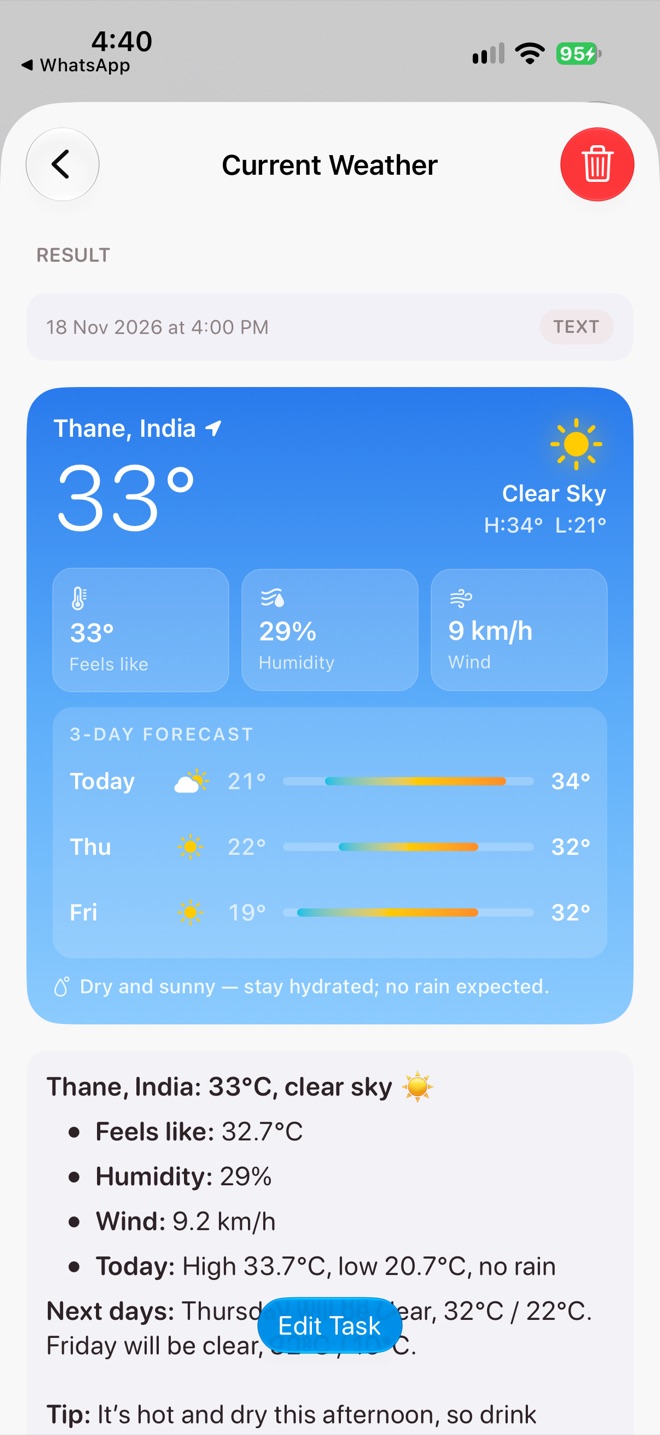
Weather
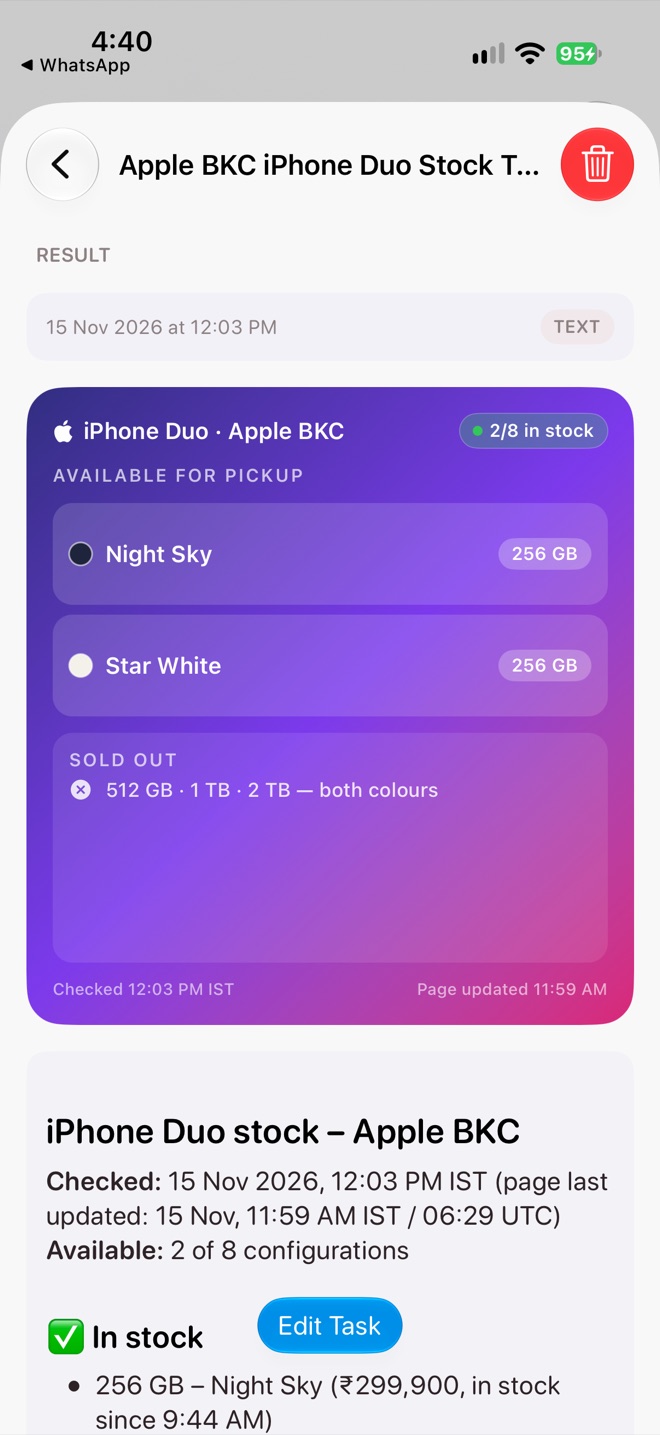
Stock tracker
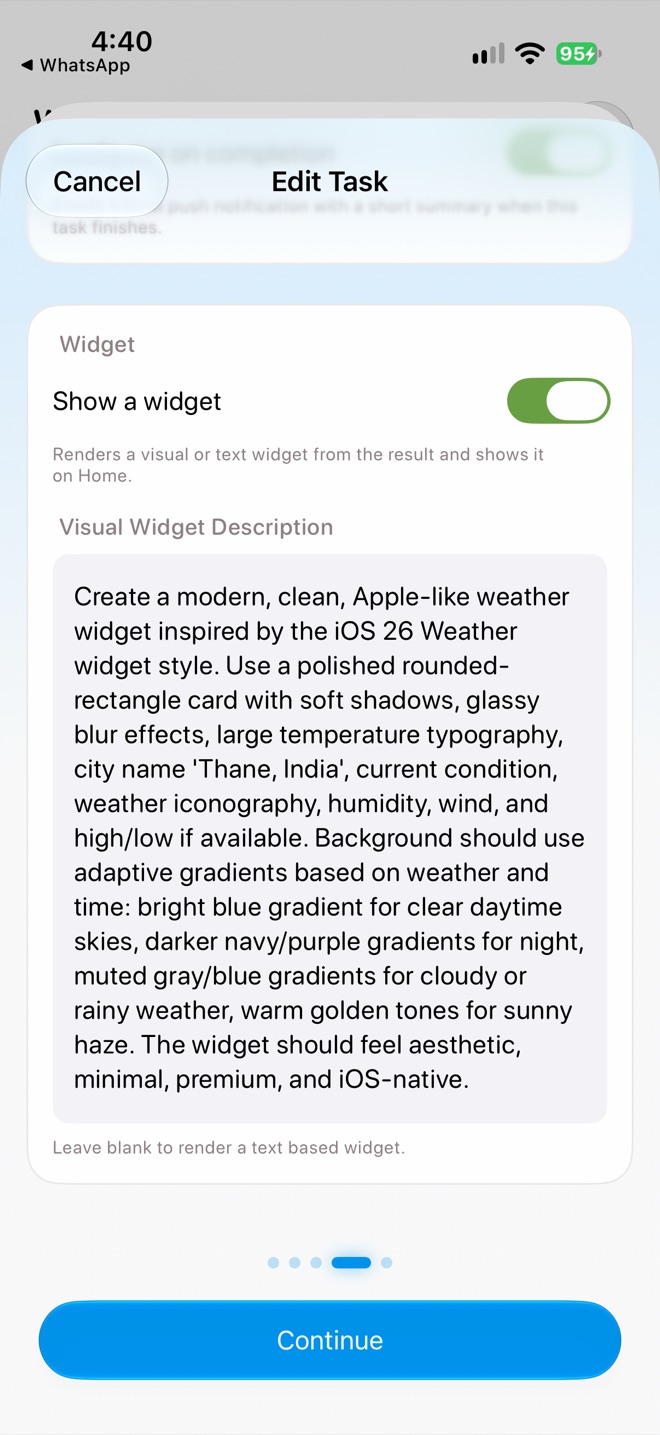
The description
- The widget updates every time the task runs, so its schedule sets how fresh it is.
- Only tasks with Show a widget turned on appear in the Task Widget’s task picker.
Make it look great
Read Design a Home Screen widget for tips and descriptions you can copy.