How-to guide
Set up a recurring task
Tasks are jobs Halo runs for you: a money digest every evening, a weekly calendar preview, a stock check every few hours. You describe it in plain words and Halo builds the task.
Create the task
Open Tasks
On the Home tab, tap the bolt icon at the top to open Tasks, then tap +.
Describe what you want
Say what to do, how often and what you want back. For example: “Every Monday at 8am, check my calendar for the week and send me a short summary with anything I need to prepare for.”
Or pick one of the Suggested tasks, like Weather Update or Evening Money Digest. Halo lists what each one needs and walks you through it.
Tap Generate Task
Halo writes the task: its name, schedule, goal, result format and the tools it needs. The editor opens so you can check it.
Review each page and save
Swipe through the editor’s pages, change anything you like, and tap Save Task.
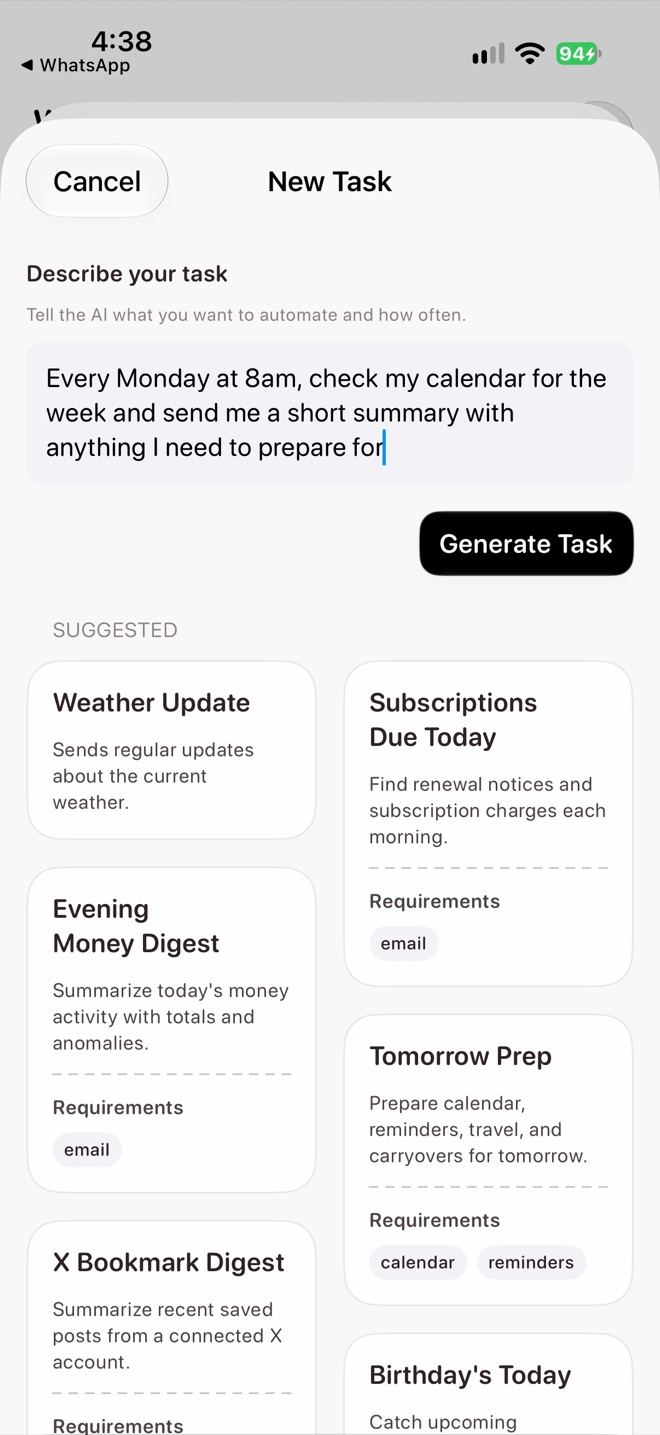
Describe your task
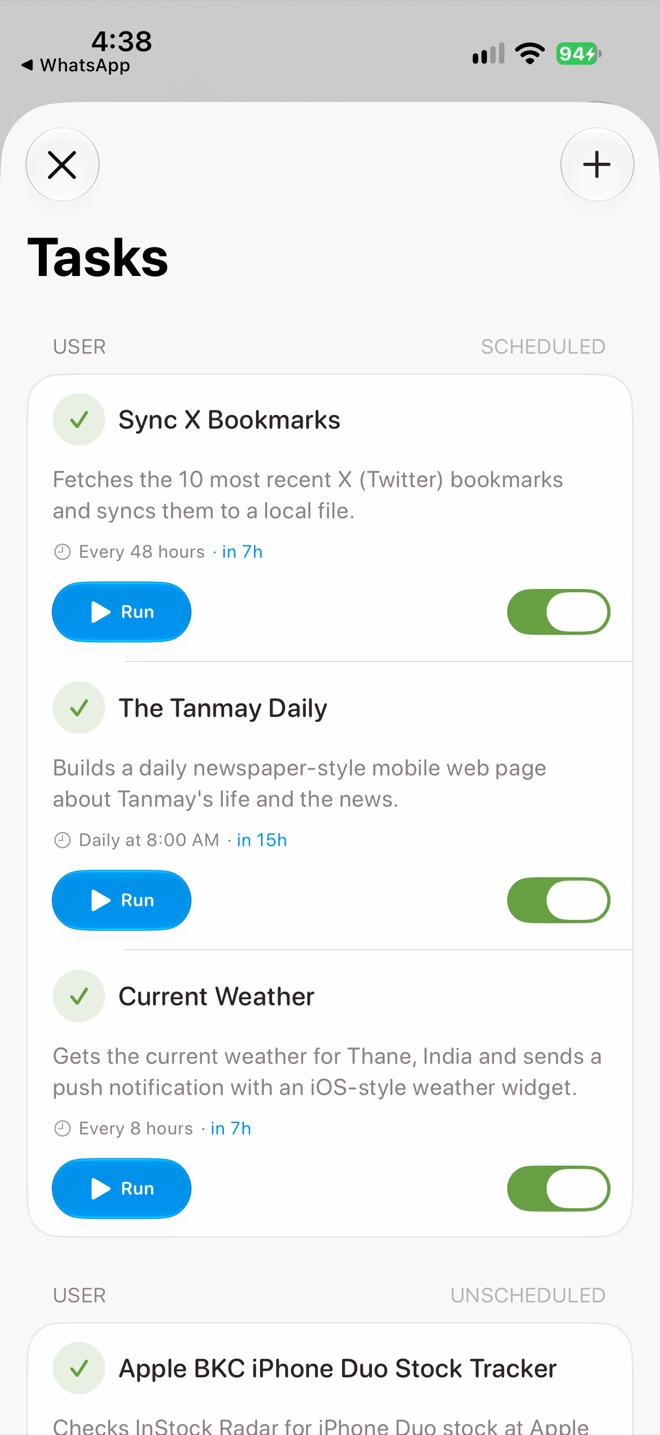
Your tasks
What’s in the editor
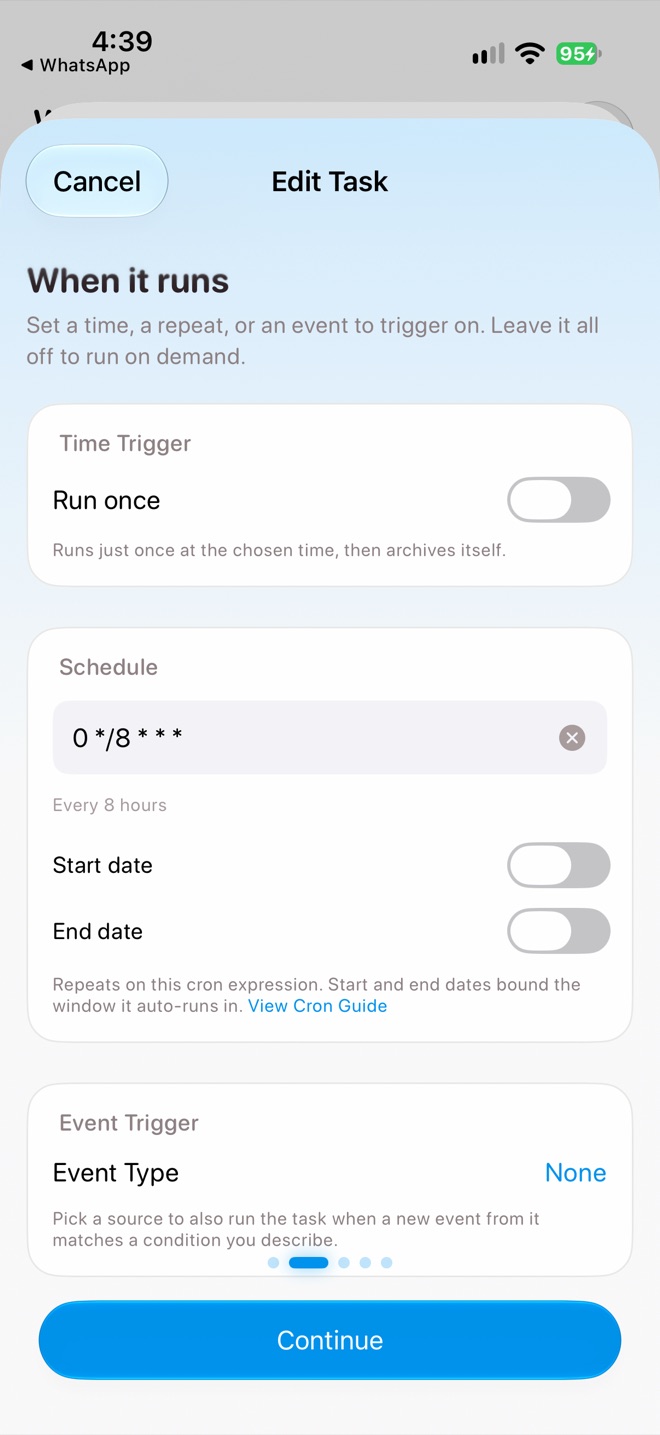
When it runs
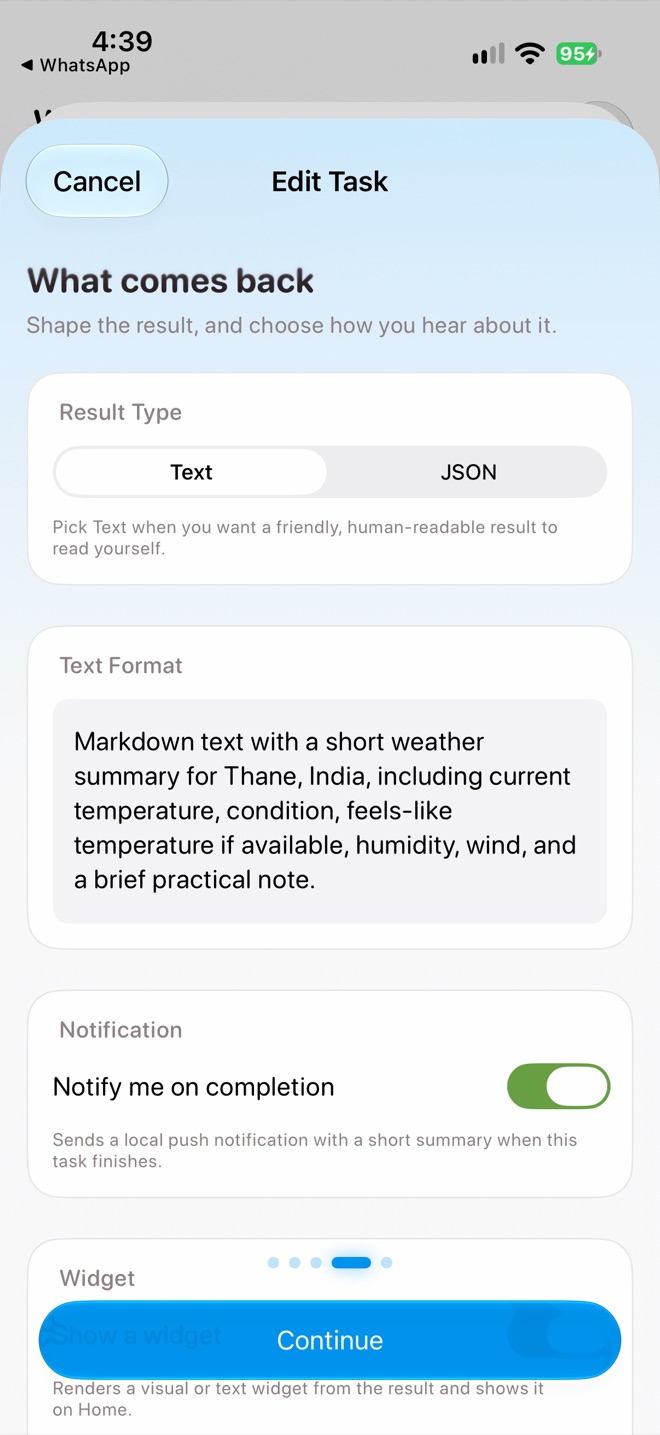
What comes back
What it can use
Name your task
A name, a short description and the Enabled switch.
When it runs
Pick one, or leave everything off to run the task only when you tap Run.
- Run once runs at a set time and then archives itself. Good for reminders and one-off research.
- Schedule repeats. It uses a cron expression, which Halo writes for you from your description. You can add a start and end date.
- Event Trigger runs when something happens: an email, calendar event, reminder, location, health, home, music, photo, message or note event, matching a condition like “an email from my bank”. A blank condition never triggers.
| Schedule | Means |
|---|---|
0 22 * * * | Every day at 10:00 pm |
0 8 * * 1 | Every Monday at 8:00 am |
0 */8 * * * | Every 8 hours |
*/15 * * * * | Every 15 minutes (good for tracking a flight) |
0 9 1 * * | 9:00 am on the 1st of every month |
The goal
The instructions the agent follows on every run. Be specific: name the source to check, what counts as important, and what to do when nothing has changed.
What comes back
- Result Type: Text for something you read, JSON if another task or widget uses it.
- Notify me on completion sends a notification with the result.
- Show a widget turns the result into a widget. See Design a Home Screen widget.
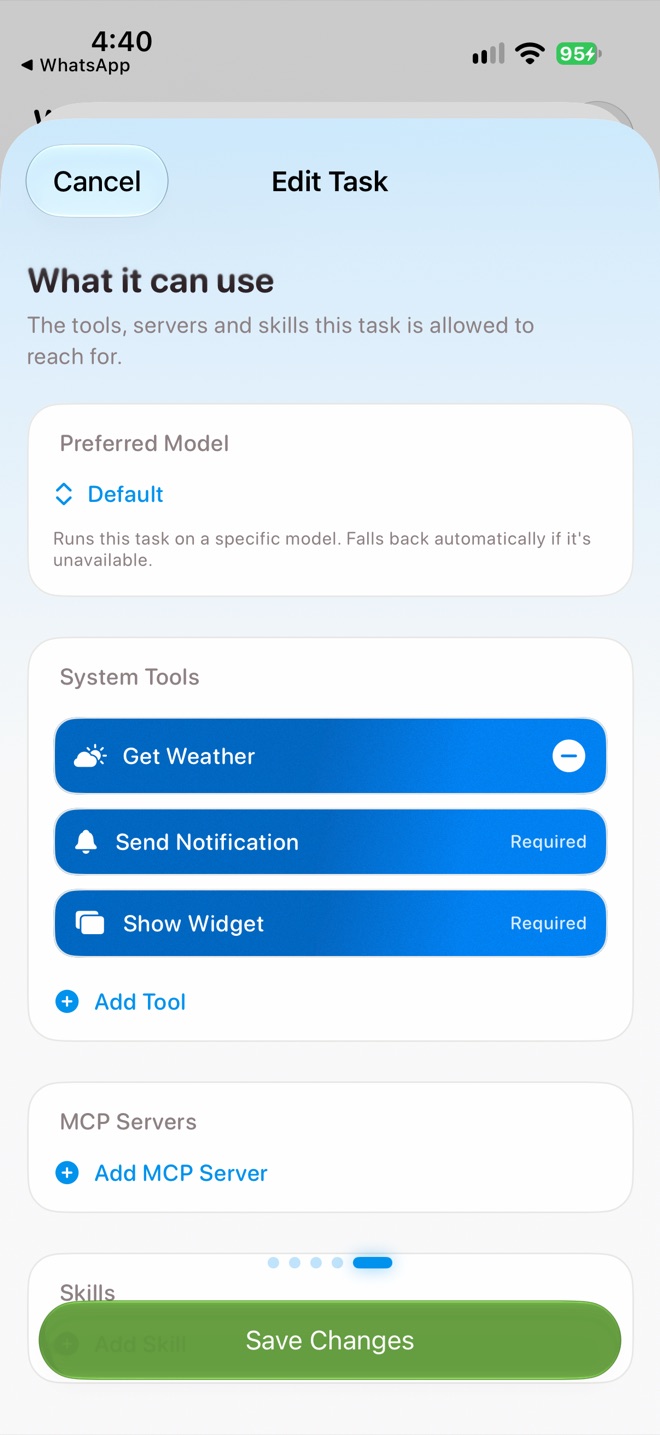
What it can use
The model to run on (it falls back automatically if that model is unavailable), plus the tools, MCP servers and skills the task may use. Only what’s listed here is available to it.
Tasks don’t ask first
Tasks run without permission prompts, so every tool you enable can run without asking. Keep the list to what the task needs. For payments, keep Require Face ID on.
Write a goal that works
- Say where to look. “Read today’s transactions from my bank emails” beats “check my spending”.
- Avoid repeats. “Keep the last status in a small file under artifacts and only notify me when it changes.”
- Say what to do on failure. “If the page can’t be read, say so and don’t make up data.”
- Describe the output. Put the format, like a heading and a bullet list, in the result format.
Run, check and fix
Tap Run on a task to try it now. Open it to see the latest result, statistics, recent runs and each agent session. A Live Activity shows progress while it runs, and switches to “Waiting for you” if it needs an answer.
- Each run can take up to 15 minutes.
- After 5 failures in a row, a task is paused until you turn it back on.
- Scheduled tasks run on your primary device. If it misses one by 3 minutes, another of your devices runs it instead.
Ask in chat
You can also create tasks in a chat: “Every evening at 10, send me a digest of what I spent today.” Halo creates the task and can run it straight away.