How-to guide
Record meetings automatically
Set a recording window, like 9 to 5 on weekdays, and Halo records on its own. It keeps only what involves you, and turns your conversations into summaries, todos and memories.
Open Notes settings
Go to Settings›Notes and scroll to Automatic Recording.
Turn on Record on a schedule
Choose the start and end times and the days. An end time before the start time runs past midnight, which is handy for night shifts.
Leave Halo running
Halo starts and stops recording while it’s open or running in the background. A Live Activity shows whenever it’s recording, and you can stop it any time. A stopped recording won’t restart until the next window.
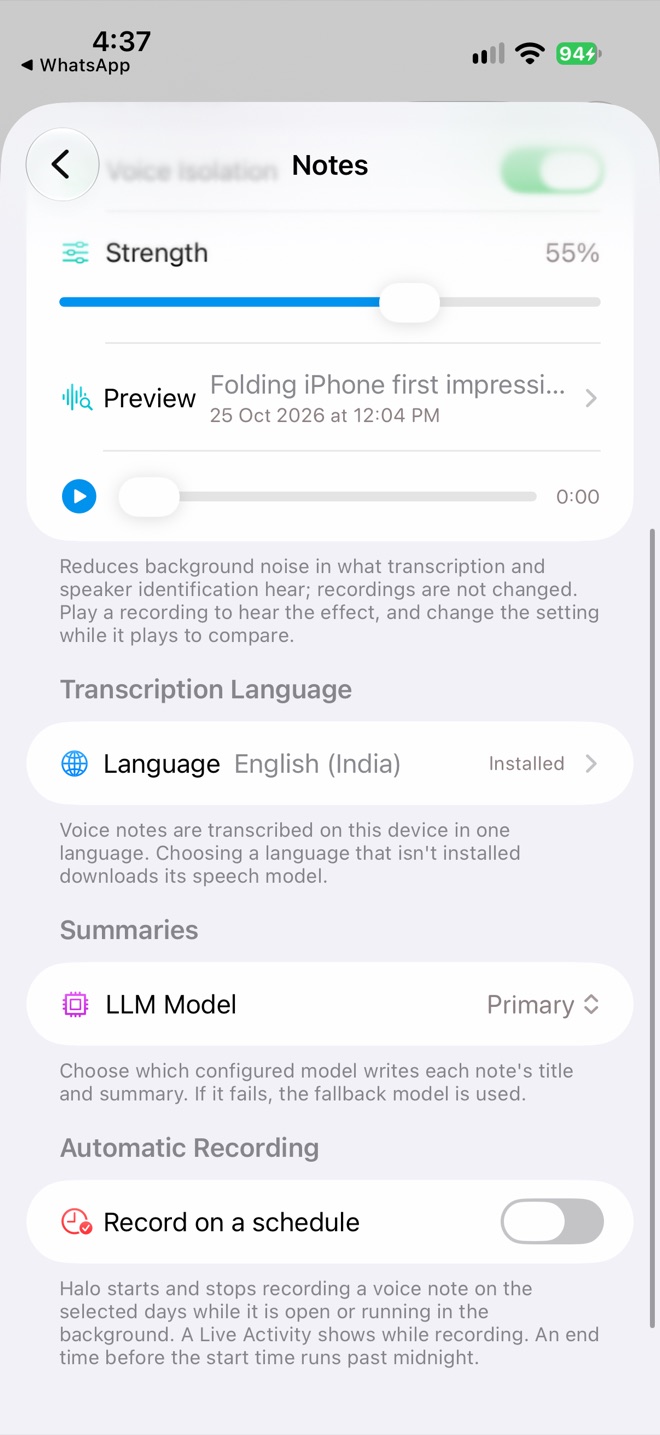
Settings › Notes › Automatic Recording
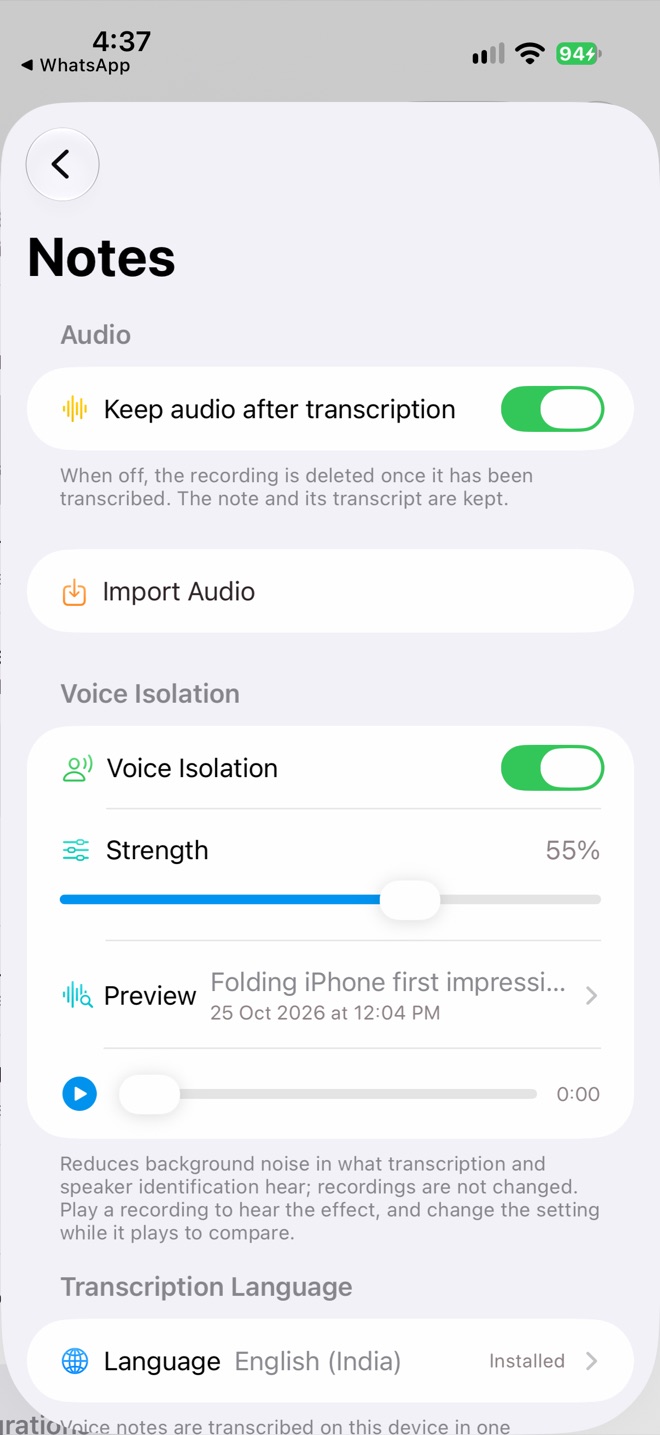
Audio and Voice Isolation
Only what involves you
A scheduled recording picks up everything around you: the TV, people at the next desk. So for scheduled notes, Halo’s summary only covers what involves you, and a note that doesn’t involve you at all creates no insights or memories. Notes you record by hand are always summarized in full.
Teach Halo who’s speaking
- Open a note’s transcript and tap a label like Speaker 1. Choose Me, a contact, or someone heard in earlier notes.
- Once you’ve marked yourself as Me, Halo recognises your voice in later notes. If it guesses wrong, tap Not you?.
- When people say each other’s names, Halo shows Suggested Names. Tap Apply and the summary is rewritten with real names.
Long days
Each note is capped at 3 hours. A long recording window rolls into back-to-back notes, and you can select several and Merge them later.
Ask first
Recording people can require their consent where you live. Let the people you meet know you’re taking notes.
Battery and storage
Turn off Keep audio after transcription to delete recordings once they’re transcribed and save space. Recording stops automatically if your iPhone is nearly full.