Automation
Websites
Halo has a built-in browser it can use to read pages, fill forms and complete checkouts. Connected Websites let it use sites signed in as you. Manage them in Settings›Connected Websites.
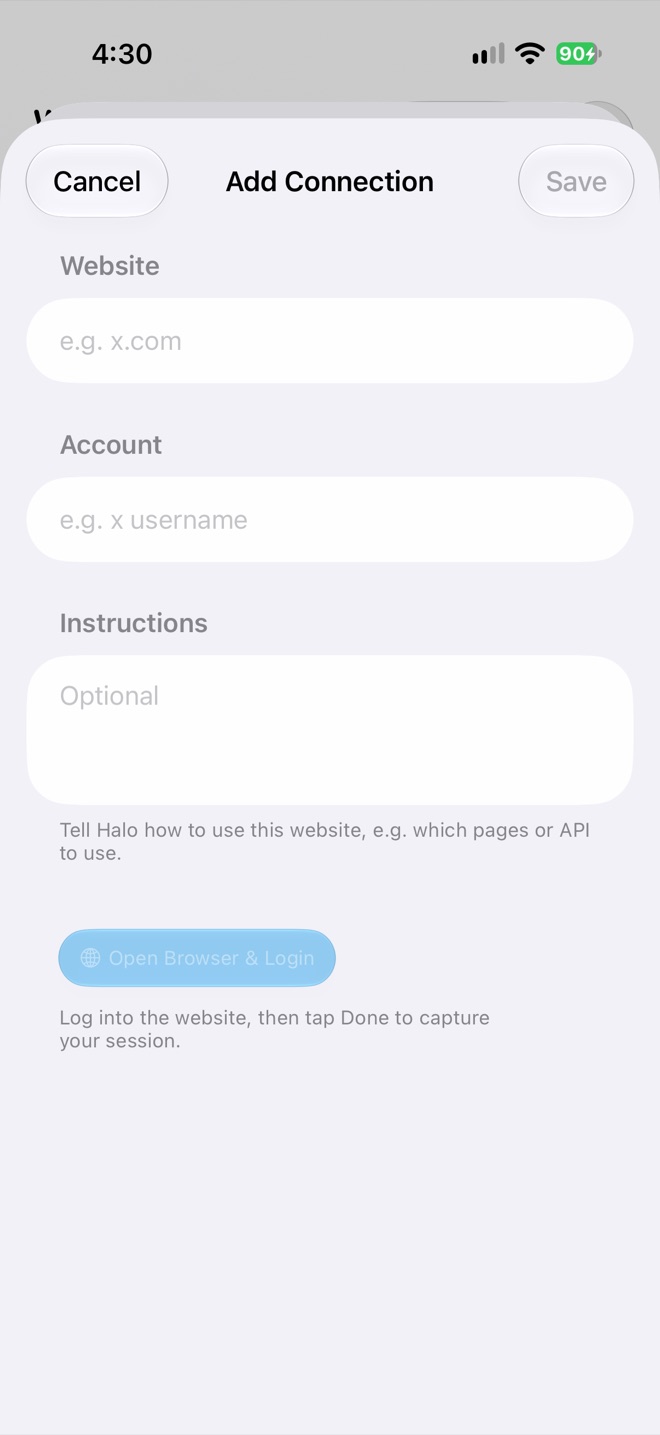
Add Connection
Adding a website
Enter the website and account, add optional instructions, tap Open Browser & Login and sign in. Halo saves your session. Step by step: Let Halo use a website as you.
Each connection
- Shows who you’re signed in as and when.
- Refresh checks the session is still valid.
- Re-authenticate opens the browser to sign in again. Sites often sign you out after a while.
- Settings edits the instructions Halo follows for that site.
- A switch turns the connection on or off.
How the browser handles secrets
- Passwords and cards come from the Secure Vault; the AI never sees them.
- Sensitive fields like card numbers, CVVs and codes are hidden from the page text the AI reads.
- It can wait up to two minutes for a one-time code from email or Messages.
MCP first
If a service has an MCP server, prefer it: it’s faster and more reliable than browsing. Use Connected Websites for everything else.
Privacy
Sessions are stored in your workspace in iCloud Drive so your other devices can use them. Remove connections you no longer use.