How-to guide
Capture voice notes with the Action Button
Press the Action Button once to start recording and again to stop. Halo transcribes the note on your iPhone, works out who said what, and writes a title and summary for you.
This works from anywhere, including the Lock Screen and other apps. A Live Activity shows the timer while you record, so you always know the microphone is on.
Before you start
- An iPhone with an Action Button (iPhone 15 Pro or later, and every iPhone 16 and 17).
- Microphone access for Halo. Halo asks the first time you record.
- A model for summaries. By default Halo uses your Primary model, set in Settings›AI Model.
Set up the Action Button
Open the Action Button settings
On your iPhone, open the Settings app and go to Action Button.
Choose Controls, or Shortcut
Swipe through the options. You have two ways to connect Halo:
- Controls, then pick Halo’s Record Voice Note control. This is the quickest and starts or stops a note with one press.
- Shortcut, then search for “Halo” and pick Record Note.
Press to record
Press the Action Button. A Live Activity appears on the Lock Screen and in the Dynamic Island with a timer, a Pause button and a Stop button.
Press again to stop
Halo saves the audio and starts processing. The note appears in the Notes tab and moves through Transcribing, Identifying speakers and Summarizing.
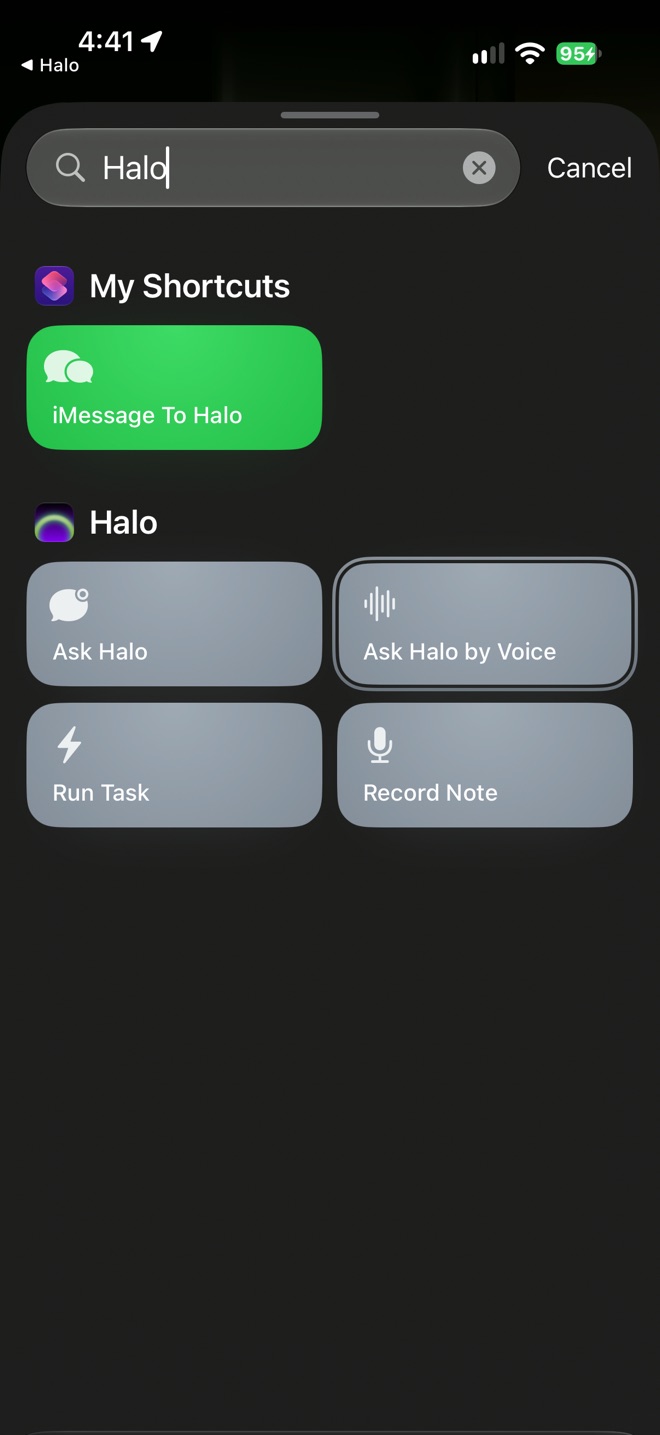
Search “Halo” in the Shortcut picker
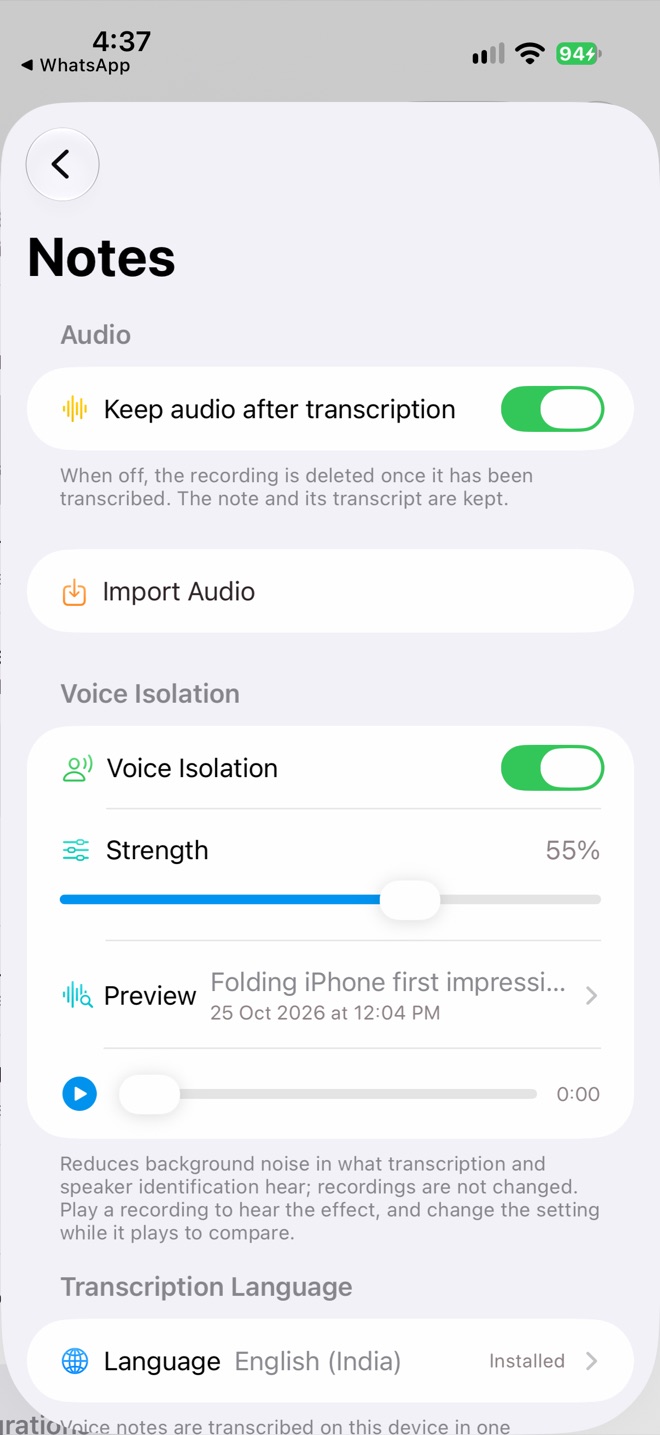
Settings › Notes
Other ways to record
You can also add the Record Voice Note control to Control Center or the Lock Screen, put the Voice Note widget on your Home Screen, say “Record a note in Halo” to Siri, or touch and hold the record button in the Notes tab for a quick note that saves when you let go.
Make the transcript better
- Voice Isolation in Settings›Notes reduces background noise in what transcription hears. Your recording isn’t changed. Use Preview to hear the effect.
- Transcription Language sets the one language each note is transcribed in. Picking a language that isn’t installed downloads its speech model.
- Tap a speaker label like “Speaker 1” in a transcript and choose Me. Halo learns your voice and labels you automatically in later notes.
Privacy
Transcription and speaker identification run entirely on your iPhone. Only the transcript is sent to the model you chose, which writes the title and summary. Turn off Keep audio after transcription if you don’t want the recording kept once the transcript is done.
Troubleshooting
- Nothing happens when I press the button. Open Halo once after installing or updating, then try again. Check that Halo has microphone access in the iPhone Settings app.
- A note says “Processing failed”. Open the note and retry processing from there. Failed notes are never retried automatically.
- Recordings stop on their own. Notes are capped at 3 hours, and recording stops when your iPhone is almost out of space.