How-to guide
Design a Home Screen widget
Any task can show its result as a widget. You describe the look in plain words, and on every run Halo draws a native SwiftUI widget in small, medium and large sizes with the latest data.
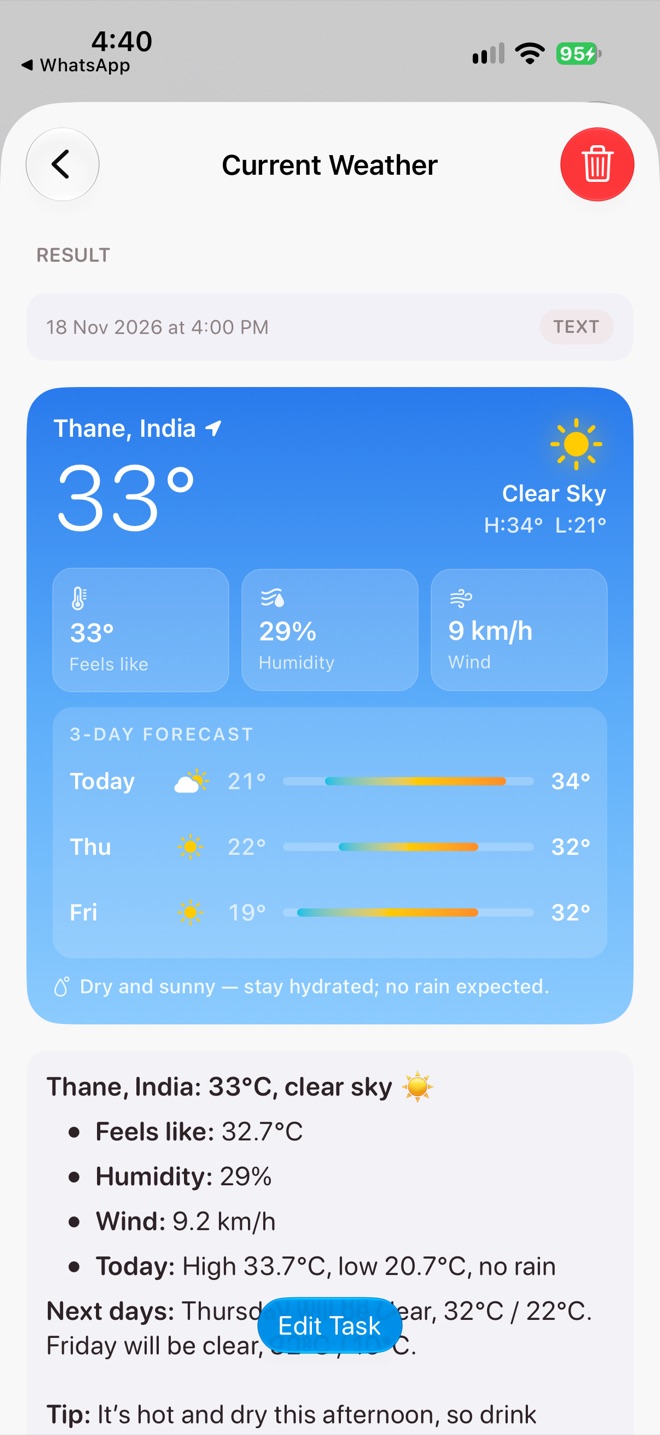
An adaptive weather widget
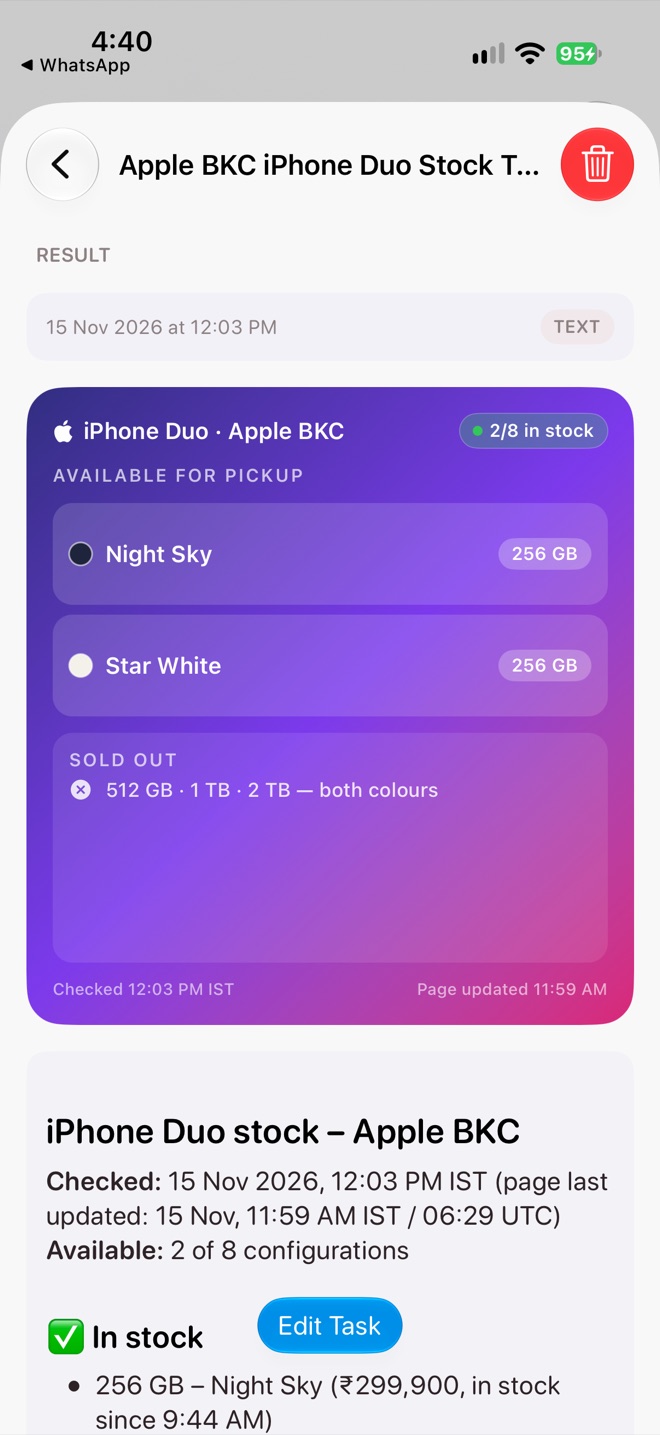
A stock tracker widget
Turn on the widget
Open the task
Open Tasks from the bolt icon on Home, tap a task, and tap Edit Task. Or create a new one, see Set up a recurring task.
Go to What comes back
Turn on Show a widget and write a Visual Widget Description. Leave it blank and you get a clean text widget.
Save and run
Save, then tap Run. When the run finishes, the widget appears on the task’s result page and in Task Results on Halo’s Home tab.
Add it to your Home Screen
Touch and hold the Home Screen, tap Edit › Add Widget, search for Halo and add Task Widget in the size you want. Then touch and hold the widget, choose Edit Widget and pick your task. Only tasks with a widget are listed.
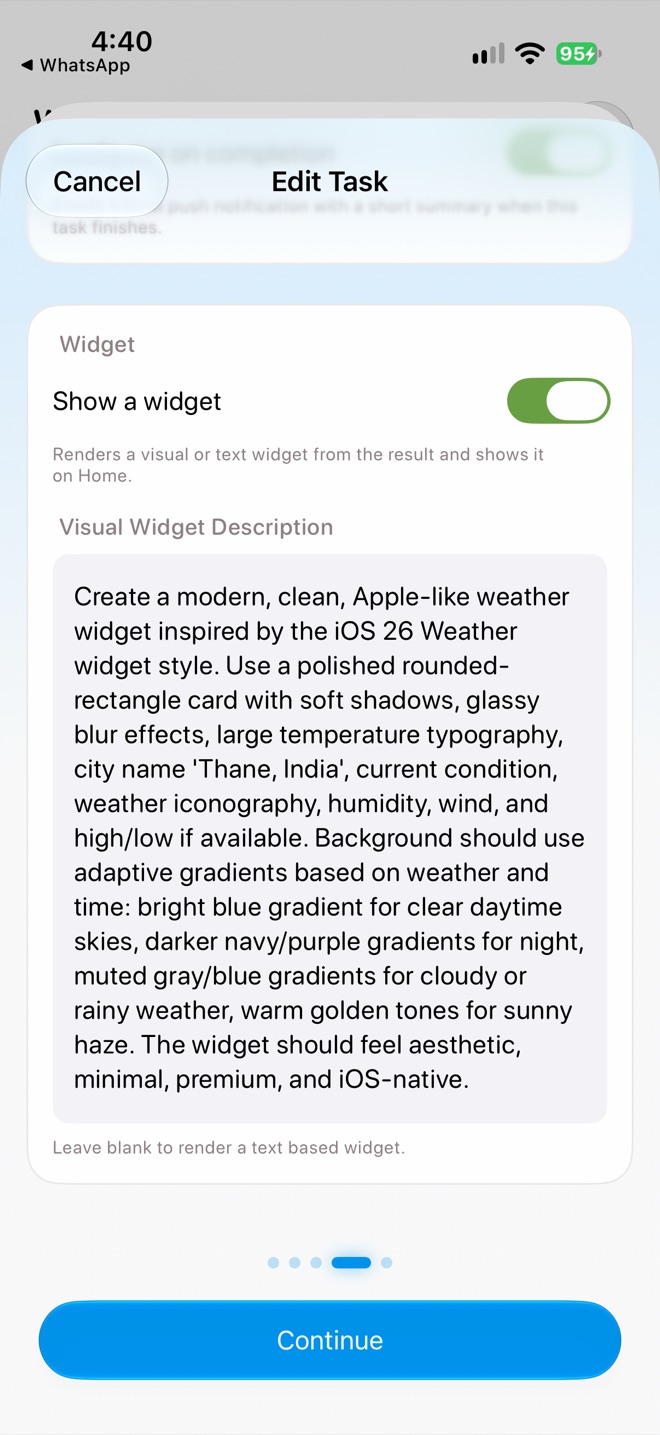
The Visual Widget Description
Design tips
These come from widgets that work well in practice. A good description reads like a brief to a designer: what goes where, what colors, and what happens when the data changes.
1. Name a style people know
“Inspired by the iOS 26 Weather widget” or “similar to the Apple News widget” gives the model a strong, native starting point. Then add what’s different about yours.
2. Lay it out top to bottom
Describe a header (title, icon, a status pill on the right), a body (the main number or a list of rows) and a footer (a small, low-opacity “Checked 4:00 PM”). Widgets with that structure read well at every size.
3. Give exact colors
Hex values beat adjectives. “Diagonal gradient from deep indigo #312E81 to violet #7C3AED to pink #DB2777, white text” comes out the same every run. “Colorful” doesn’t.
4. Let the data change the look
Tell the widget how to react. The weather widget uses a bright blue sky for clear days, navy and purple at night, muted grey-blue for rain and warm gold for haze. The stock tracker tints its pill green when something is in stock and grey when nothing is.
5. Plan for empty and error states
Say what to show when there’s nothing to show: “If nothing is available, show a centered muted icon and the text ‘No stock right now’.” Without this, an empty widget looks broken.
6. Cap the rows
Widgets are small. “Show at most 6 rows; if there are more, add a ‘+N more’ line” keeps the large size tidy, and Halo trims further for medium and small.
7. Pick the type
Use one large number for the thing you glance at (temperature, balance, count), and small captions for the rest. Mention line limits for text, like “caption for the username and up to 3 lines of callout text below it”.
8. Use images and links
Widgets can show images, which Halo downloads during the run, and rows can open a link when tapped: “an image thumbnail at the leading edge if the post has one; tapping a row opens the post.”
9. Use glass sparingly
Frosted tiles (white at about 15% opacity) on a gradient look great for secondary stats like humidity and wind. Keep the main value directly on the background so it stays readable.
Examples to copy
Adaptive weather
A modern, Apple-like weather widget inspired by the iOS 26 Weather widget.
Rounded card with soft shadows and glassy blur. Large temperature, the city
name, current condition with an SF Symbol, humidity, wind and high/low.
Background adapts to weather and time: bright blue for clear days, navy/purple
at night, muted grey-blue for cloud or rain, warm golden tones for sunny haze.
Minimal, premium and iOS-native.
Status tracker
Card with a diagonal gradient (deep indigo #312E81 → violet #7C3AED → pink
#DB2777), rounded corners and white text. Header: an icon, the title, and on
the right a small frosted pill with the count (e.g. "3/8 in stock"), tinted
green if anything is available, grey if not. Body: one row per available item
on frosted tiles (white at 15%), with a colour swatch, the name in semibold and
a pill tag on the right. Show at most 6 rows, then "+N more". If nothing is
available, show a centred muted icon and "Nothing in stock right now".
Footer: small low-opacity "Checked <time>".
Reading list
Rows like the Apple News widget. Each row: the author in caption, then up to
3 lines of the post in callout font, leading aligned. If the post has an image,
show a rounded thumbnail at the leading edge. Tapping a row opens its link.
Keep the result and widget in sync
Put the data you want on the widget into the task’s goal too (“include humidity, wind and the 3-day forecast”). The widget can only show what the run collected.
Other Halo widgets
Halo also has Today’s Summary (your daily briefing with tappable highlights), Todo List (check off todos from the Home Screen) and Voice Note (record with one tap). See Widgets.