How-to guide
Connect an app with MCP
MCP (Model Context Protocol) is how apps offer tools to AI assistants. Connect an app’s MCP server and Halo can use it: add a page in Notion, check a PR on GitHub, or order dinner on Swiggy.
Open MCP Servers
Go to Settings›MCP Servers and tap +.
Find the server
Type the app’s name in Search MCP servers to search the official MCP registry. Or enter it yourself: a Name and the Server URL from the app’s docs.
Sign in
Halo detects how the server signs in when you enter the URL. For OAuth, tap Connect with OAuth and sign in to the app in the browser sheet. For an API key, choose API Key as the Auth Type and paste it.
Save
Tap Save. The server shows how many tools it offers. Use the switch to turn it on or off.
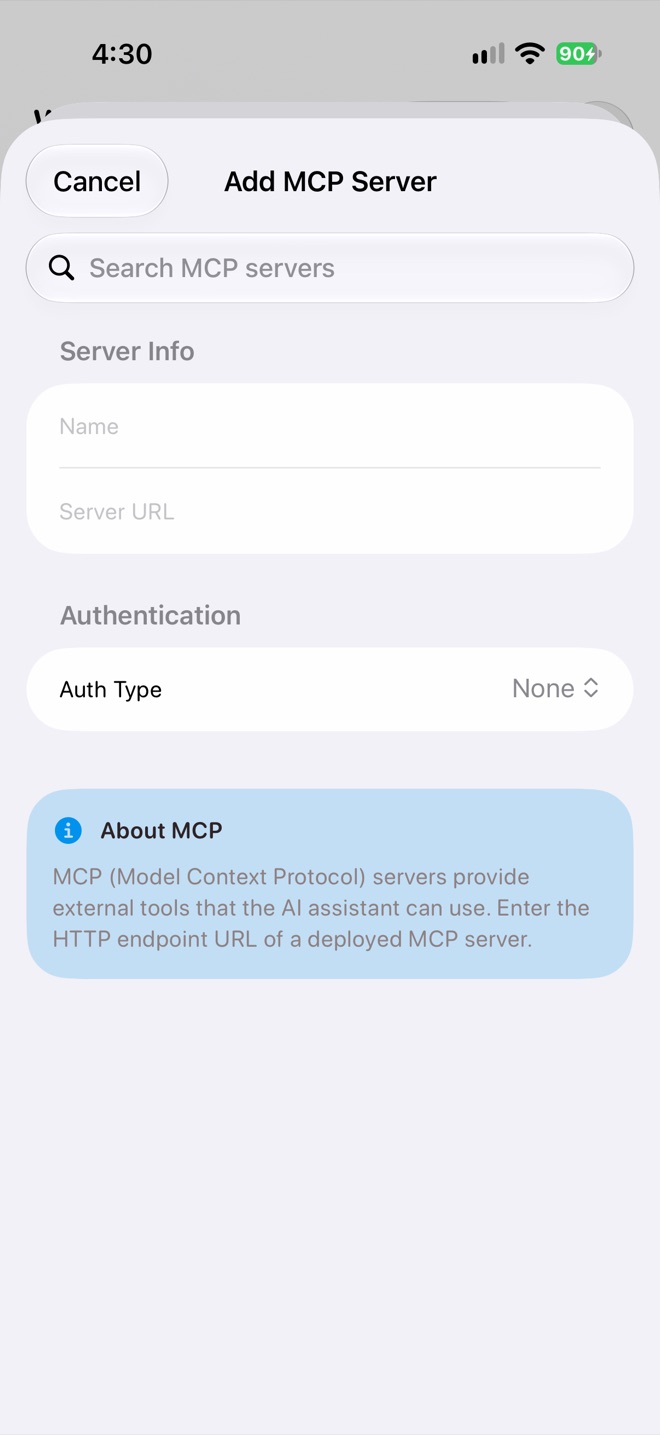
Add MCP Server
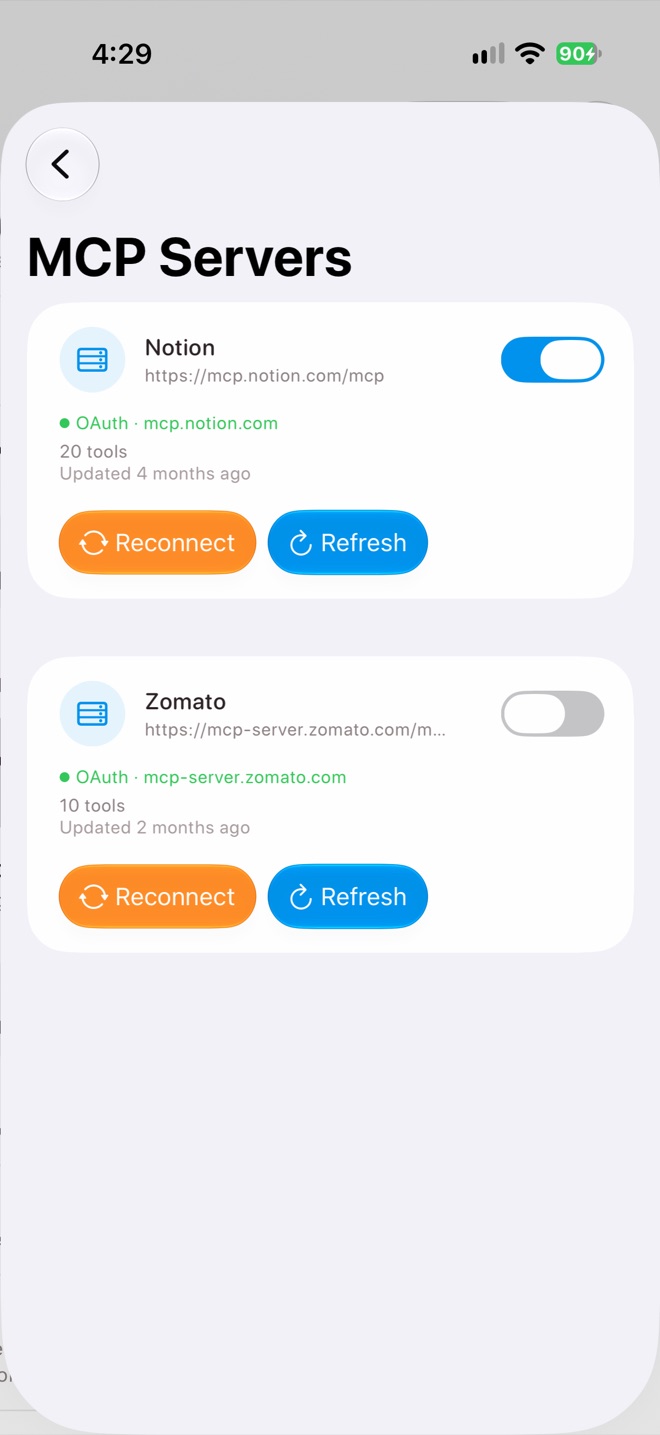
Connected servers
Use it
Just ask. Halo picks the right tools from your enabled servers:
- “Add these meeting notes to my Notion Projects page.”
- “Reorder my last Zomato order.”
- “What are my open PRs on GitHub?”
To use a server in a scheduled task, add it under What it can use › Add MCP Server in the task editor. Tasks only get the servers you give them.
Remote servers only
Halo connects to MCP servers over the internet (HTTP). Servers that only run as a local program on a computer aren’t supported on iPhone.
Keep it working
- If a row says OAuth (expired), tap Reconnect and sign in again.
- Tap Refresh when an app adds new tools.
- Connection problems also show in the Activity popover on Home.
No MCP server?
If a service doesn’t have one, sign in to its website under Connected Websites and Halo can use the site directly.